Registering a Family at Your Parish
When a family has registered at your parish, (via filling out a registration form) you can change their record depending on the following circumstances:
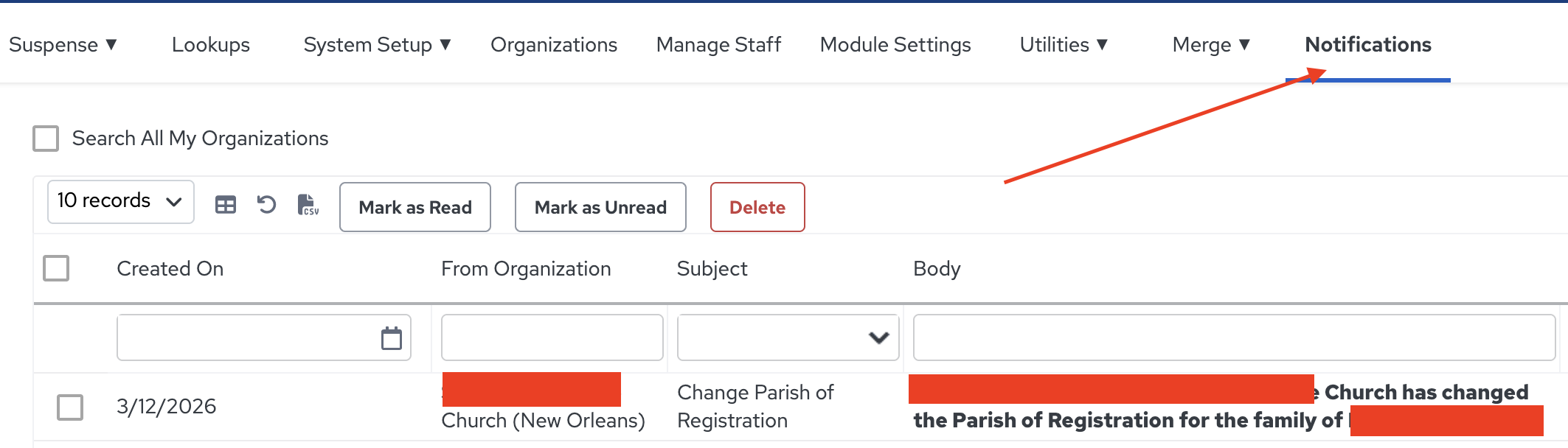
- If they are a current "shared" family record, you can change their registration status to indicate that they are registered at your parish. This will change the family registration status to un-registered in their former parish and make your record the prevailing record for diocesan updates. This will also post a notification at the original parish of registration that the parish family has moved elsewhere. (Administration >> Notifications)
- If upon searching, you do not find the family in your database but you do find them registered at a different parish, you can check the Registration Status ✔ checkbox when pulling the family into your database. This will change the family registration status to unregistered at the former parish and make your record the new registered family record.
- When entering a new family which is not listed in another parish, you can enter them in your database and by default the checkbox for Registration Status ✔ will be checked indicating that they are registered at your parish.
Follow the guidelines for DATA ENTRY STANDARDS for adding a new family who is not registered at another parish. If the search shows the family is registered at another parish, follow the guidelines below for families registered at another parish, FAMILIES REGISTERED AT A DIFFERENT PARISH.
Families Registered at a Different Parish
DESCRIPTION:
This standard procedure outlines the process to be followed when a parish is adding a new family already registered at another parish in ParishSOFT. When a new family is added into a parish's database, the system requires you to search the Diocesan database to determine if a family is already registered at another parish.
PROCEDURE DETAILS:
When adding a family into the parish database, do a name search to see if the family exists in another parish's database. It is possible to find the family in the list of search results. To avoid duplication of records, it is important to do an accurate name search before creating a new family.
REGISTERING AN EXISTING FAMILY AT YOUR PARISH
If the family has indicated their intent to register at your parish, select the family name from the Search results. Check the Registration Status ✔ box on the family record. This will unregister them at their current parish. The former parish will receive notification of the status change on the Notifications page (see screenshot above), but it is also recommended that you contact the prior parish as a matter of courtesy. Once a family is registered at your parish you will have access to the fields that are available only to the parish of registration.
Adding Registered Parishioners
These instructions are for adding a new family record to a parish. This includes all steps of searching for the new family within the Diocesan database, importing or creating them from scratch and adding an envelope number to the family record.
- Within the ParishSOFT Family List for the parish, click the Add New Family button to set up the new family.
- You will be prompted to search for the family you want to add.
- Be sure to search and see if a record exists for this family in another parish.
- This is especially important when the family exists in another parish, as you will be able to import a copy of that family record and may not have to enter much data for this family.
- Keep the search as simple as possible to prevent missing them. Start by only searching for the last name. (i.e. – searching "Johnson" will find William Johnson, whether he is listed as William, Willie, Willy, Bill, Billy, or anything else.) Only expand the search if the results are too many to look through within a minute.
- Be sure to search and see if a record exists for this family in another parish.
- If you find a matching record in another parish, click the Add Selected Family ▼button and then select "As Registered" from the dropdown list.
- Change the Family Group to "Active" or the most appropriate group.
- If all members will be "Active", you can click "Yes" to the pop-up box question of whether all individual family member statuses should be changed to "Active".
- "Save" the changes that you made to the family record and "Close".
- If you do not find a family record in another parish, click on the Add New Familybutton and enter the member information and address. (Review our data entry standards HERE)
- Be sure that the Registration Status ✔ checkbox is checked.
- Set the Family Group to "Active".
- All fields that are marked with a red asterisk (*) must have information in them.
- Enter all of the family and address information that you have for the new family.
- You can enter multiple members of this family on the "Add New Family" screen:
- After entering the member information in the left column, you can add a second member by clicking on the Add Another Member button.
- It is recommended that you enter all adults in the family through this process, but not children – which can be entered more easily from the Members Detail page.
- When entering the adult member records, be sure to select the appropriate "Type":
- "Head" is used for single people (or single parents).
- "Husband" and "Wife" for married couples.
- "Adult" is used for another adult that is not married to the "Head"
- You must have a "Head", "Husband" or "Wife" selected as a Type. The system will not allow you to save the new record without one of those roles.
- Once you have entered the name, role and address, click the Save & Edit button.
- Once the family is added, you will be brought to the Family Details page, where you can edit or add more information.
- If the family has a PO Box address this should entered as the "Mailing" Address
- If you know the physical address, this should be entered as the "Home" Address.
- Designate which address their mail should go to by selecting either the "Home" or "Mailing" address as the 'Primary Address'
- To assign an Envelope # to this family:
- Be sure to save the record and close out after entering all other information.
- Re-open the record.
- Select the "Envelope #" field without going into any other field
- Enter the number that you want.
- Save and close your changes without Tabbing or clicking into any other field.
- You can now enter more information on the Member Details pages.
- You can edit the members that you brought in with the family record to be more complete.
- You can add other members of the family, especially children.
- Be sure to click "Save" after updating each member's page.
- When you finish entering information on any tab, click the Save button before moving to the next tab or page.
- When you are done entering all information for this family, click the Save & Close button to save your final information and close out of this record.
Was this article helpful?
That’s Great!
Thank you for your feedback
Sorry! We couldn't be helpful
Thank you for your feedback
Feedback sent
We appreciate your effort and will try to fix the article