Data Entry Standards When Adding a New Family
Data entry standards assist in the proper formatting so that data among parishes are consistent. Correct spelling of a family’s name, along with the inclusion of member birthdates, helps in the reduction of duplicate entries and assists in communication. The following procedure should be followed when entering a new family so key fields are consistent across all parishes.
- Please verify the family and member names for accuracy before entering information into the database. This will help to ensure that any search performed for a family or member will reveal the correct results. The following fields will be needed to completely record a family and its members. Where noted, lookup tables are defined by the Diocese. For those fields, a selection list will appear at the time of data entry. Required fields are designated by an asterisk (*).
- Enter the Member Information:
- Member Prefix (Member’s Title) * – E.g., Mr., Mrs., Miss, etc. Select from lookup table.
- Member First Name * – Member’s formal name.
- Member Nick Name – Name the member uses every day (if different than the formal name).
- Member Last Name * – Will populate from Family Name you entered in the search. Change if different from the family last name.
- Member Suffix – e.g., Jr., Esq., M.D., etc. Select from lookup table.
- Member Type (Role) * – Head, Husband, Wife, Son, Daughter, etc. Complete instructions for this field follow.
- Member’s Gender – Male, Female (Unknown may be used temporarily in cases where member’s gender needs to be confirmed.).
- Member’s Date of Birth – Member’s date of birth. Birth dates are very important and allow many of the reports to run accurately, therefore please enter a date of birth for all parishioners.
- Member’s Email Address – Member’s email address.
- Enter the Family Information:
- Family Group * – Active, Inactive, etc. Select from lookup table.
- Send Magazine – Up to Parish discretion, defaults to No.
- Registration Status – Check the Registration Status checkbox if this family is registering at your parish; do not check if this family is already registered at another parish. Review the Adding Registered Parishioners and Adding Non-Registered Parishioners for more information.
- Family Names (Best populated clicking the Auto Fill button and modifying as needed. See screenshot below) – Using Auto Fill will automatically populate the Family Name fields based on the information in the Head/Husband/Spouse member records. The Family’s First Name field may be changed if the Head/Spouse of the family uses a Nick Name, as that field with their formal name.
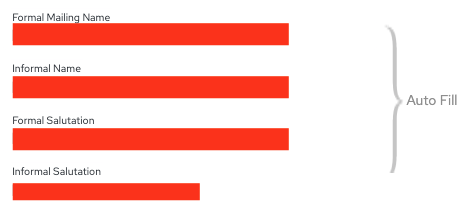
- Family Last Name * – Family last name commonly used (e.g. Smith).
- First Name(s) * – First name of spouses, male and female, separated by an “and”. This may also be the head of household’s first name. (e.g. Joseph and Mary, or Joseph)
- Formal Mailing Name – How the family wishes to be addressed in mailings. (e.g. Mr. and Mrs. Joseph Smith)
- Informal Name – First Names and Last Name. (e.g. Joseph and Mary Smith)
- Formal Salutation – Used in the salutation on a formal letter. (e.g. Mr. and Mrs. Smith)
- Informal Salutation – First names, used in the salutation on an informal letter. (e.g. Joseph and Mary Smith)
- E-Mail Address – Family email address.
- Family Address – The Address Type (Home, Mailing or Other) designates which address to use for mailings.
- When adding a family that is not present in the database, be sure to capitalize the first letter of each first name as well as the first letter of the last name. Failure to adhere will cause unprofessional appearances of the name when sending mail merge letters or other communications to the family. Do not use all capitals for names or appearance when sending mail merge letters or other communications to the family. This violates United Postal Service requirements.
- There are 4 family mailing name fields used in ParishSOFT. It is critical when adding family and member names and the entry in the Mailing Name field that both be correct for consistency and to respect the preferences of the person being entered. Therefore, the question should be asked of the individual or couple when registering them about how they would like to see their names appear on letters and mailings.
- Follow these Best Practiceswhen entering names:
- For consistency, the husband or the man’s name is always entered first – John and Susan.
- Do not use characters such as hyphens or forward slashes to indicate a couple.
- Do not use an ampersand (&) in place of the word “and”.
- Do not use punctuation when abbreviating.
- Use the proper titles and suffixes supplied in the lookup table. If you need one that is not included, please contact the Diocese so it can be added to the global list.
- Do not use spaces in names beginning with Mc, Mac, etc. Use: McDonald, MacDonald, not Mc Donald, Mac Donald.
- If the wife chooses to retain her maiden name along with her husband’s surname, enter the member last name for the wife as she wishes it to appear. E.g., John Doe (Husband), Jane Dixon-Doe (Wife).
- Do not use spaces in hyphenated names. Use: Cindy Smith-Jones, not Cindy Smith – Jones.
- Assign Family and Member Roles as follows:
- Family Roles– Every family record MUST have one member record with the following member type (role) for the program to work properly: Head, Husband, or Wife.
- For consistency, married couples are added as role Husband for the man and Wife for the woman.
- Head is used for a single individual in a household.
- Member Types (Roles)– Everyone must be given a Member Type (Role). Incorrect use of Roles can cause inaccurate information on some reports.
- Daughter and Son are used for children, as well as for Foster Daughter, Foster Son, Stepdaughter, and Stepson.
- Other family member roles are based on who they are in relation to the Head, Husband or Wife. For instance, if the husband’s mother moves in with them, her role would be Mother because she is the Mother of the husband, not Grandmother to the children.
- Unknown should only be used until you can investigate and identify the proper Role.
- Enter spouses that are non-Catholic whether they participate in Church activities with the family or not, as well as spouses that choose not to participate in any religious activities.
- All members of the family should be entered in the family record, so you are creating an accurate representation of the family. Choose each person’s faith in the Status field. If the non-Catholic spouse does not participate, you can label them as Inactive and then complete the Religion field. Catholic should be used for all Catholics; if you wish to track rite of Catholic, that should be done as a Workgroup.
- Unmarried Adults living in the same household can be separate Family records with each being the “Head” of household, or if it’s preferred to have one Household, one adult should be designated Head with the other designated as Adult.
- Adult Relatives living in the same household, e.g. Mother-Daughter, Sister-Brother, should be set up as two separate families with each being the Head of their Family.
- Family Roles– Every family record MUST have one member record with the following member type (role) for the program to work properly: Head, Husband, or Wife.
- Enter Email Addresses:
- It is very important to include email addresses for both family and member records.
- Since most people have multiple email addresses, please ask the family for a preferred family email address to use for family communications, and an individual email address for individual communications.
- The family email is the default for most communication in ParishSOFT; however, there are times when the member email can be used instead of the family email. Enter member email addresses on the member record.
- When you finish entering information on any tab, click the Save button before moving to the next tab or page.
- When you are done entering all information for this family, click the Save & Close button to save your final information and close out of this record.
Was this article helpful?
That’s Great!
Thank you for your feedback
Sorry! We couldn't be helpful
Thank you for your feedback
Feedback sent
We appreciate your effort and will try to fix the article