Merging Family and Member Records
Note: Family and member merge access is disabled by default. If you have not been given permissions to merge, you will need to submit a merge request ticket through the helpdesk or call the Data Engagement Coordinator at (504) 267-9216.
ParishSOFT documentation:
- Merge-Duplicate-Family-Records:https://support.parishsoft.com/hc/en-us/articles/30696869459355-Merge-Duplicate-Family-Records
- Merge-Duplicate-Member-Records:https://support.parishsoft.com/hc/en-us/articles/14630029787291-Merge-Duplicate-Member-Records
- Merging webinar: https://vimeo.com/895924424
Merging Family and Member Records is the method for removing duplicate records from the parish rolls.
Merging a Family or Member requires that you have the Family Diocesan Unique Identification (FDUID) or the Member Diocesan Unique Identification (MDUID) for both the Permanent Family or Member that will persist as well as the Duplicate FDUID or MDUID for the duplicate, unwanted, or unneeded Family/Member record to be eliminated. The FDUID can be found at the top of the Family record screen, in parentheses, to the right of the Family name. The MDUID can be found on the Member tab under the icon for a Member photograph.
To merge records, follow the steps below:
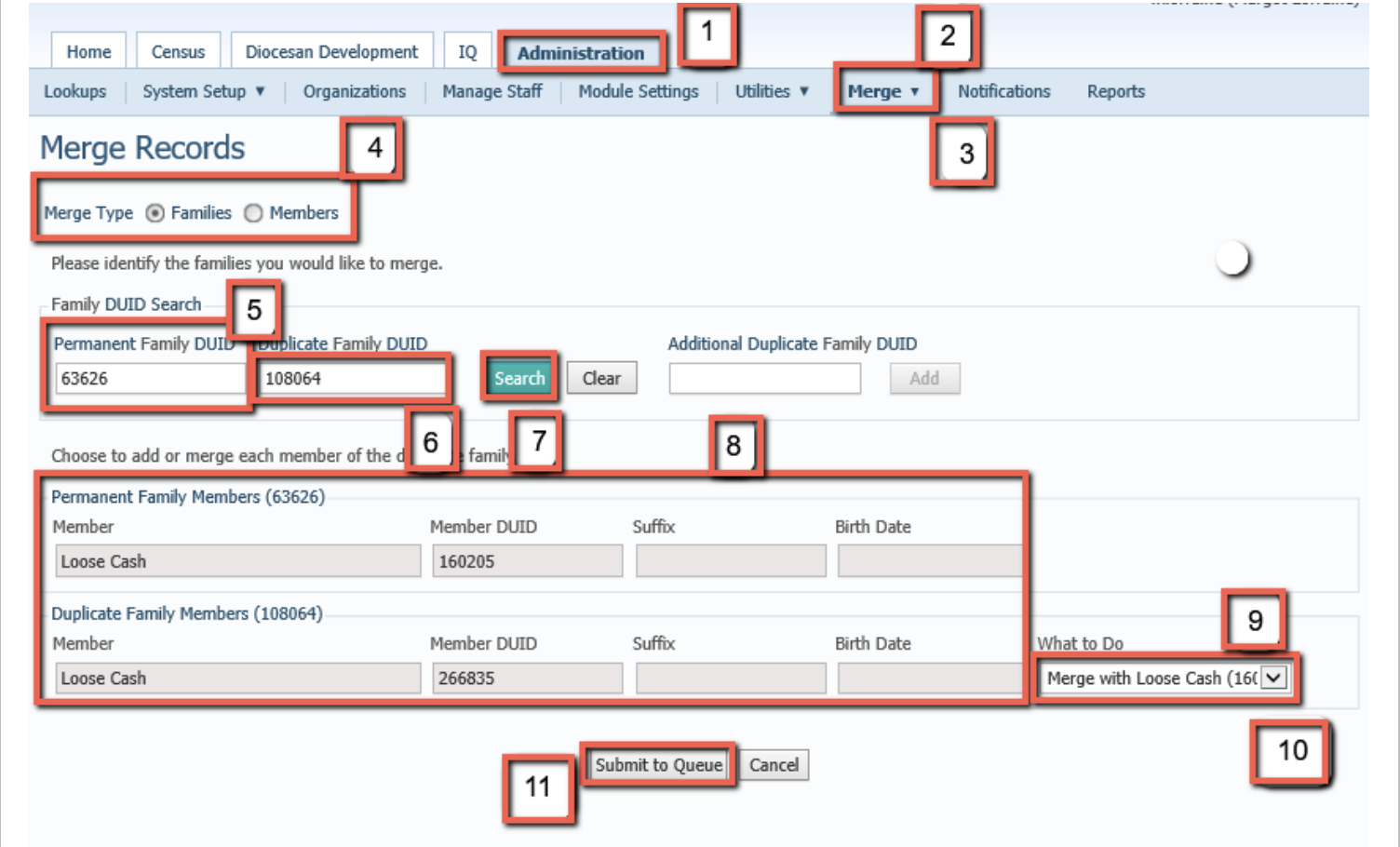
- Navigate to Administration (1).
- Click Merge (2) on the menu.
- Select Merge Records from the dropdown box (3).
- Select either Families or Members as the Merge Type to configure the following steps (4). The selected Merge Records screen appears.
- Enter the Permanent DUID for the record that will persist (5).
- In the Duplicate DUID field (6), enter the DUID of the record that will be eliminated.
- Click Search(7).
- The screen displays the found records (8).
- Click the What to Do dropdown box (9) and choose the appropriate Merge action (10).
- Click Submit to Queue (11) to complete the merge.
Notes on Merging
- No contribution data is lost in the merge.
- Creating a merge will add the merge request to the Merge Queue. The merge action will take place overnight.
- It is best practice to check the Merge Report the following day to ensure that the merge was successful. If there are any problems, reach out to the Data Engagement Coordinator at tvalentine@ccfnola.org.
Was this article helpful?
That’s Great!
Thank you for your feedback
Sorry! We couldn't be helpful
Thank you for your feedback
Feedback sent
We appreciate your effort and will try to fix the article